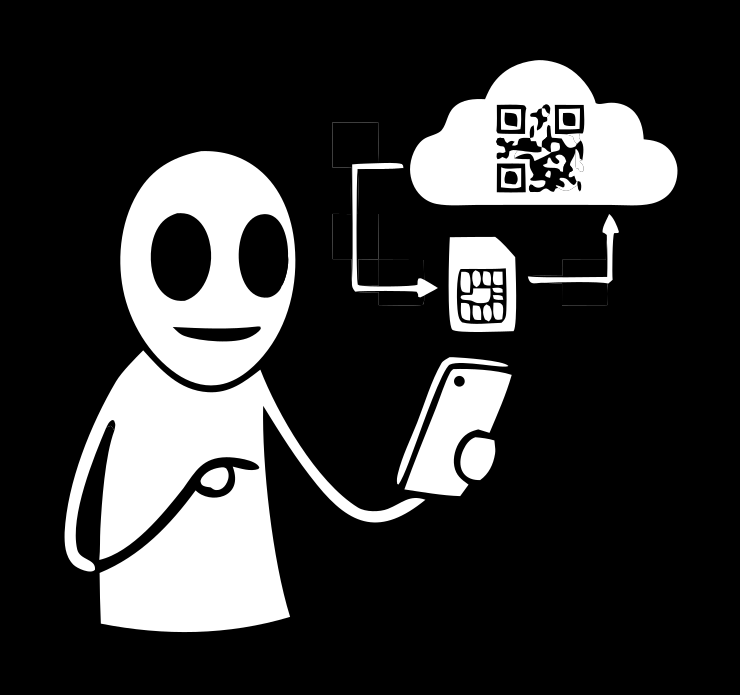
Installing an eSIM is simpler than it sounds: no plastic SIM to source, no shop, no swapping trays. The carrier profile loads straight onto your phone in a couple of minutes — by QR code or an activation code. Below is a step-by-step for iPhone and Android, what to switch on right after, and what to do if there's no data yet.
Before you start
Three things you'll need for the profile to activate:
- A phone that supports eSIM. Most modern smartphones do, but not every model — check your device's specs first.
- A stable internet connection while installing — Wi-Fi or mobile data. The profile downloads over the network.
- A QR code or activation code — you get this after buying. With Freeland eSIM, it's right in the app, alongside your remaining data and validity.
One tip up front: install the profile ahead of time at home, and switch it on when you arrive. That way you land with data ready instead of hunting for a connection abroad.
How to install an eSIM on iPhone
On iPhone the setup takes a few steps:
- Open Settings → Cellular (or Mobile Data).
- Tap Add eSIM → Use QR Code.
- Point the camera at the QR code with your profile. No code handy? Choose to enter details manually and paste the activation code.
- Wait for the profile to load and give it a clear label — say, "Travel."
- In the line's settings, turn on Data Roaming for this profile — without it, there's no data.
You can keep your home SIM active for calls and switch mobile data to the eSIM.
How to install an eSIM on Android
Menu names vary a little by maker (Samsung, Google Pixel, Xiaomi), but the flow is the same:
- Open Settings → Connections / Network & internet.
- Choose SIMs → Add eSIM or Download a SIM instead.
- Scan the QR code with the camera, or enter the activation code manually.
- Confirm the download and wait for the profile to install.
- In the new line's settings, turn on Data Roaming.
If there's no eSIM option in the menu, the model likely doesn't support it, and the profile can't be installed.
After installing: turn on data roaming
The most common reason an eSIM "doesn't work" is data roaming left off. A foreign carrier profile is always in roaming as far as your phone is concerned, so you have to enable data roaming by hand. While you're there, check that mobile data is assigned to the new profile, not your home line. After that, data appears within a few minutes.
How to check whether your phone supports eSIM
Worth confirming before you buy a plan:
- Dial
*#06#in the phone app. If the identifiers include an EID, the phone supports eSIM. - iPhone: eSIM is supported from iPhone XS, XR and newer.
- Android: supported on Google Pixel (3 and up), Samsung Galaxy S20 and newer, and many Xiaomi, Huawei and Motorola models. There's no single rule — check your model's specs.
- In settings: if Cellular / SIMs shows "Add eSIM" or "Download a SIM," you're set.
If there's no support, the profile can't install on that device — it's a hardware limit, not the service.
If the eSIM won't connect
Don't write the profile off — the usual fixes are simple:
- Check data roaming and that mobile data is set to the new profile.
- Restart the phone — this often finishes activation after install.
- Give it time. In some countries and networks, activation isn't instant and can take longer; a carrier may run an extra check.
- Select the network manually in carrier settings if the phone won't attach automatically.
- Confirm coverage. No profile guarantees signal on every network — in dead zones there simply won't be data.
If nothing helps, your profile's status is in the app, and you can reach support with the specific order.
Where to get a profile
Freeland eSIM is travel data straight from the app: a catalogue by country, region and global plans covering up to 130 countries. The profile installs by QR code, your remaining data and validity show on screen, and when data runs out you can top up the same profile if a compatible plan exists. Prices start from 0.43 USDT, paid from your account balance. It's one of four tools in Freeland by Mr Freeman, alongside VPN, Card and Number.
How to buy and activate from scratch — in how to buy an eSIM. Why it's worth it on a trip — in eSIM for travel.
FAQ
How do I know if my phone supports eSIM?
Check the model's specs or dial *#06# — if there's no "Add eSIM" in cellular settings, the device doesn't support it.
Can I install an eSIM without a QR code?
Yes. Instead of scanning, choose manual entry and paste the activation code — the result is the same.
Why is there no data after installing?
Most often data roaming is off, or mobile data is on the wrong line. Check both and restart the phone.
Will my main number stay active?
Yes. Your home SIM stays on for calls and texts, and data goes through the eSIM.
How long does activation take?
Usually a few minutes, but not always instantly — in some countries it takes longer while the carrier runs a check.
Can I move the profile to another phone?
It depends on the carrier and model: profiles are often tied to a device, so installing fresh on the phone you want is simpler.
Can I use an eSIM and my normal SIM at the same time?
Yes, on phones that support two lines. Your home SIM handles calls and texts on your number, while mobile data runs through the eSIM — nothing to switch by hand.
Does installing an eSIM affect my old SIM?
No. Your plastic SIM stays in place and works as before; the profile is added as a separate line without replacing it.
Installing an eSIM is a few minutes' work: load the profile by QR code and turn on data roaming. Freeland eSIM puts the profile in the app straight away, paid any way you like.